Friday, July 18, 2014

How to use LVM - Expand, Reduce, and Snapshot [ debian , ubuntu ] I tried it on ubuntu server 12.04

  This video is not mine but very professional and profound step by step .Please don't forget use 
 NANO /ETC/FSTAB but to auto mount local volume on start you have to use MAPPER but not UUID 
or you will have problem on boot.Copy of my 12.04 ubuntu server  FSTAB is below the video
                                     

pvcreate /dev/sdb1
pvdisplay
pvscan

vgcreate 4tb /dev/sdb1      [ I use only one 4tb hard drive ]
vgdisplay
vgscan

lvcreate -L 1000G  4tb  -n VIPI

lvcreate -L 1000G 4tb  -n TEMU
lvdisplay
lvdisplay
lvscan

1 BONUS   sudo  vgchange  -ay

2 BONUS   sudo  update-initramfs -u

3 BONUS   sudo lsblk

my 2 mount points is    /arj4tb/VIPI  and  /arj2/TEMU

                                             
sudo nano /etc/fstab

# /etc/fstab: static file system information.
#
# Use 'blkid' to print the universally unique identifier for a
# device; this may be used with UUID= as a more robust way to name devices
# that works even if disks are added and removed. See fstab(5).
#
# <file system> <mount point>       <type>   <options>             <dump>  <pass>
     proc            /proc           proc     nodev,noexec,nosuid     0       0


/dev/mapper/molot-root /                               ext4    errors=remount-ro      0       1

/dev/mapper/4tb-VIPI /arj4tb/VIPI                ext4    errors=remount-ro      0       1
/dev/mapper/4tb-TXMU /arj24tb/TEMU      ext4    errors=remount-ro      0       1

# /boot was on /dev/sda1 during installation
UUID=9bd8f2d3-f260-41fe-b7a4-d71818a4d82f /boot   ext2    defaults    0       2

 /dev/mapper/molot-swap_1 none              swap    sw                 0       0

Wednesday, June 11, 2014

How to check your laptop battery status from terminal

                                                                       step 1
                                     
                             
                     apt-get install acpi  

                   acpi -v  
                             

                   acpi -i   
                                             
 
                   acpi -V

Wednesday, January 29, 2014

How to see full information of your hard drive from terminal

                                                                               step 1

                      hdparm -I  /dev/sda          

Tuesday, January 28, 2014

How to make file 100% unrestorable + bonus

                                                               step 1

                      contents of the file
                                                                         

                                                                           step 2

                      double check for  backup                    
                                                                               

                                                                             step 3

                     shred  passwords passwords~
                                                                             
                                                                             step  4

                       always verify and newer trust software
                                                                                   
                                                                              step 5
                       let's see what inside                      
                                                                                 
                                                                                 step 6

                      let's see what inside
                                                                               

                                                                                step 7


                  Ctrl + h  to see the hidden files
                                   passwords~ can't be opened
                                                           
                                                  BONUS
                                                   
                            destroy pictures on usb flash drive

                                                        step 1

                   shred shredtest/*.png                    

                                                     step 2

                     results            pictures can't be opened      

Saturday, December 28, 2013

How to extract tar.gz file and create tar.gz file

                                                                                 step 1
                                                                                   
                     tar  -xzvf  backup.tar.gz                              
                      
                                                                             
                                                                                   step 2

                      results                    

                                                                                  step 3


                                                                                 step 4
                                                          create tar.gz file

                     tar  -cvzf  backup.tar.gz  file1  file2               
                                                                                    step 5

                      results                    
                                                                                 
                                                                         step 6

                                                                           step 7

                                                                    bonus
                if you want to see what is inside tar.gz file without extracting
                     tar -tvzf backap120413.tar.gz
                                                                                 

How to mount usb flash drive from terminal in ubuntu server or host

                                                                      step 1

                    cd /
                cd /media
                sudo mkdir all usb   
                                                                   

                                                                         step 2

                    sudo fdisk -l                        
                                                                           

                                                                              step 3

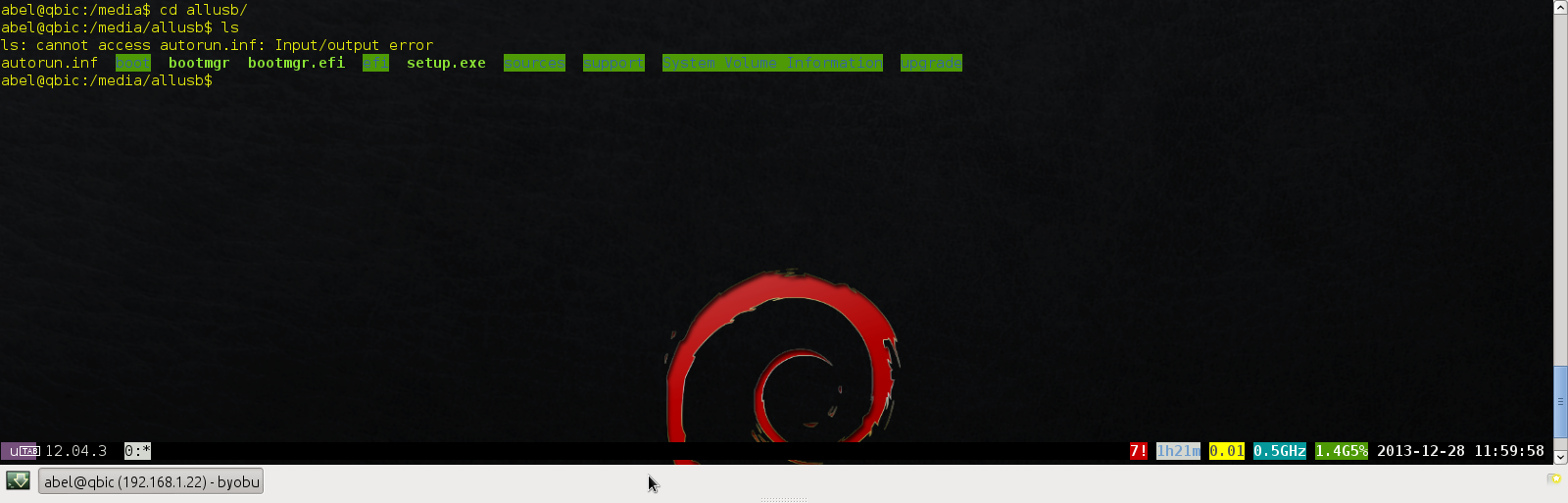
                      results   from fdisk -l                         

                                                                            step 4

                     sudo mount /dev/sdb1 /media/allusb                  

                                                                          step 5

                      cd allusb    (or name you choose before)                     

                                                                          step 6

                       now you can use files from pen drive                      

                                                                            step 7
                  sudo umount /dev/sdb1(do not forget to get out from mount point) 
                         
                                                          same others ways

    sudo mount -t vfat /dev/sdb1/ /media/allusb/ -o uid=1000,gid=100,utf8,dmask=027,fmask=137   


              sudo mount -t ntfs-3g /dev/sdb1/ /media/allusb                      

Friday, December 20, 2013

how to start a second network adapter

                                                                          step1

                     sudo ifconfig
                                                                          step 2
                      results
                                                                            step 3
                     sudo   ifconfig eth1 up
                                                                               step 4
                      results

How to add google + Button on your website

                                                                            step 1

                   https://support.google.com/webmasters/


                                                                                step 2

                                                                                     
                                                                                               https://developers.google.com/+/web/+1button/  
                                                                                   

                                                                           step 3
   
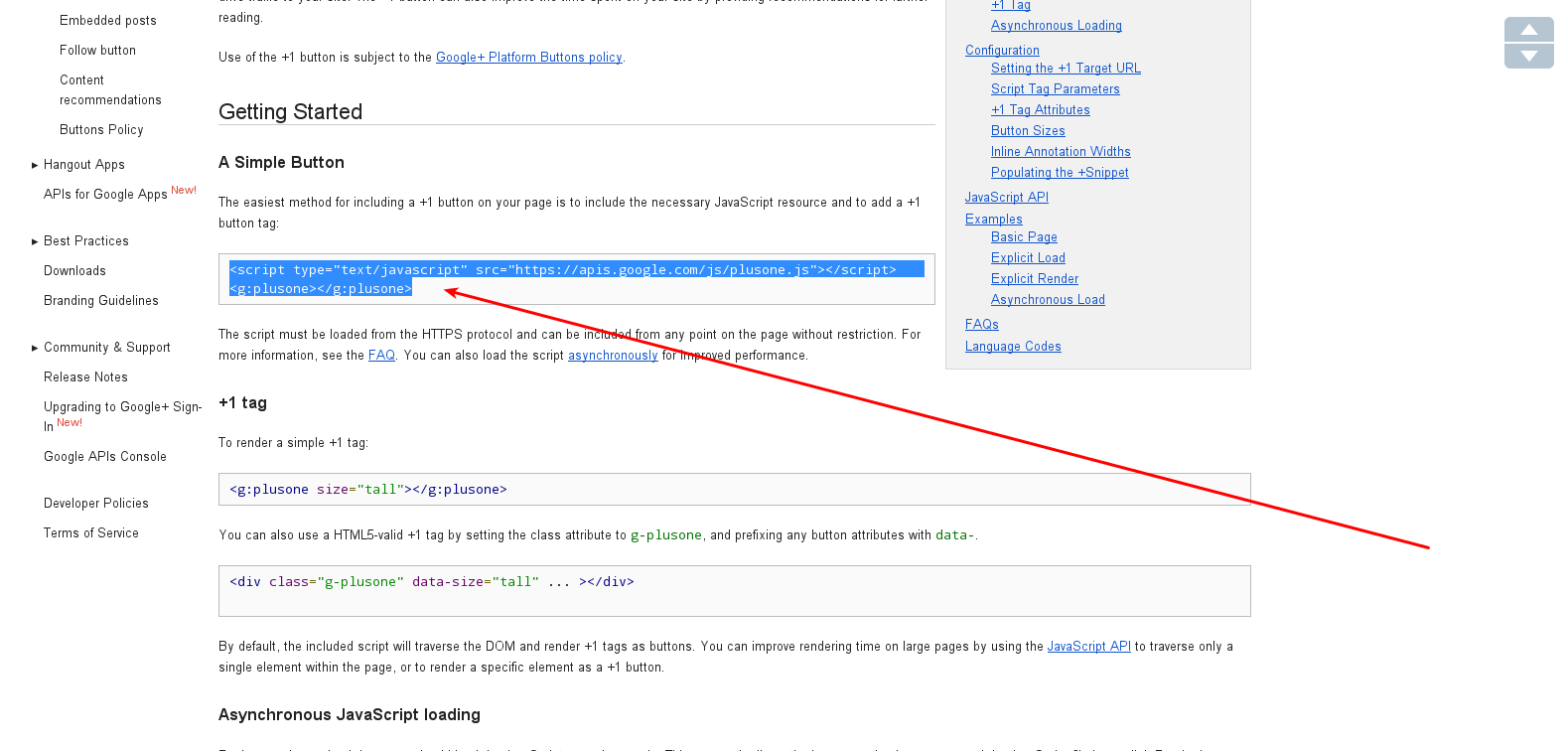
 <script type="text/javascript" src="https://apis.google.com/js/plusone.js"></script><g:plusone></g:plusone>
                                                       copy code from google      


                                                                       step 4
                                                                on your server
                                 
                    su -    Enter password  then change directory to   
                     cd /var/www
                    nano index.ntml     or    sudo  nano index.ntml 
                      paste code from google in to file
                       Ctrl + x then y

                                                    results

How to see full cpu information on Linux from terminal

                                                                        step 1
         
                    sudo cat /proc/cpuinfo  
                                             
      It is the best command for getting the information about your cpu

Thursday, December 19, 2013

How to backup your blogger blog (export)

                                                                        step 1


                                 remember shit happens 

How to monitor hdd temperature from terminal

                                                                    step1
                                                                     
                    sudo apt-get install hddtemp      


                                                                       step2

                      yes or no  is up to you        
                                                                               

                                                                             step3

                     keep it as it is                  

                                                                            step 4

                      keep it as it is                  


                                                                              step 5

                    sudo hddtemp /dev/sd[a-z]                  

                                                                           OR
                 hdparm -H /dev/sda


wordpress problem with plugin updates

                                                           changing permissions will solve the problem                                    ...